HOME INSPECTOR QUICK START
Your first solar report with SCP
You collect the field information and photos. SCP prepares the Assisted Report. You download it and deliver it to your client.
Your account is free. No monthly fee. Explore the workspace and learn the process at your own pace. Use SCP when a solar opportunity comes up; there’s no obligation to submit a report.
Already invited? Start with your invitation email, then follow the steps below.
STEP 1
Accept your invitation and save your profile
If you applied publicly, SCP reviews your credentials before sending an invitation. If SCP invited you directly, use that invitation email.
- Open the invitation sent to your work email and complete secure account setup.
- Review your details in My account. Application details may already be filled in.
- Add your name, phone, company, inspector credentials and service area, then select Save profile.
Missing the email? Check spam, then contact SCP to confirm the address and request help. Keep using the same inspector account for your saved work.
STEP 2
Add SCP to your phone
Open the SCP Inspector app setup page. This is the current web app; no App Store download is required.
iPhone or iPad
- Open the link in Safari.
- Tap Share, then Add to Home Screen.
- Enable Open as Web App if shown, and tap Add.
Android
- Open the link in Chrome.
- Choose Install app, or use the browser menu and select Install app or Add to Home screen.
- Open the SCP icon and sign in.
An internet connection is required to save, upload photos and submit. Wait for confirmation before closing the app.
STEP 3
Open Assisted and collect the essentials
In My Workspace, choose Have SCP build the report, then start a new submission. Assisted is the starting path for new inspectors. The full self-completed report requires SCP certification access.
- Client and property: full client name, client email and complete property address. Record the inspection date and who was present; add a phone number when available.
- System: enter the panel count. Select the installer when known, or use Check installer for permit research. Record wattage and system size when known.
- Battery and inverter screen: answer both questions in the Assisted form. A Yes answer requires the corresponding photo. Use the unable-to-determine or unable-to-inspect option when appropriate.
Do not guess missing information. Enter the address before uploading. Use Save draft to pause and return later.
STEP 4
Upload the photos in their matching slots
The form includes reference photos. Capture equipment from safe, accessible viewpoints and work within your qualifications.
- Front of propertyA wide home view and visible solar roofline.
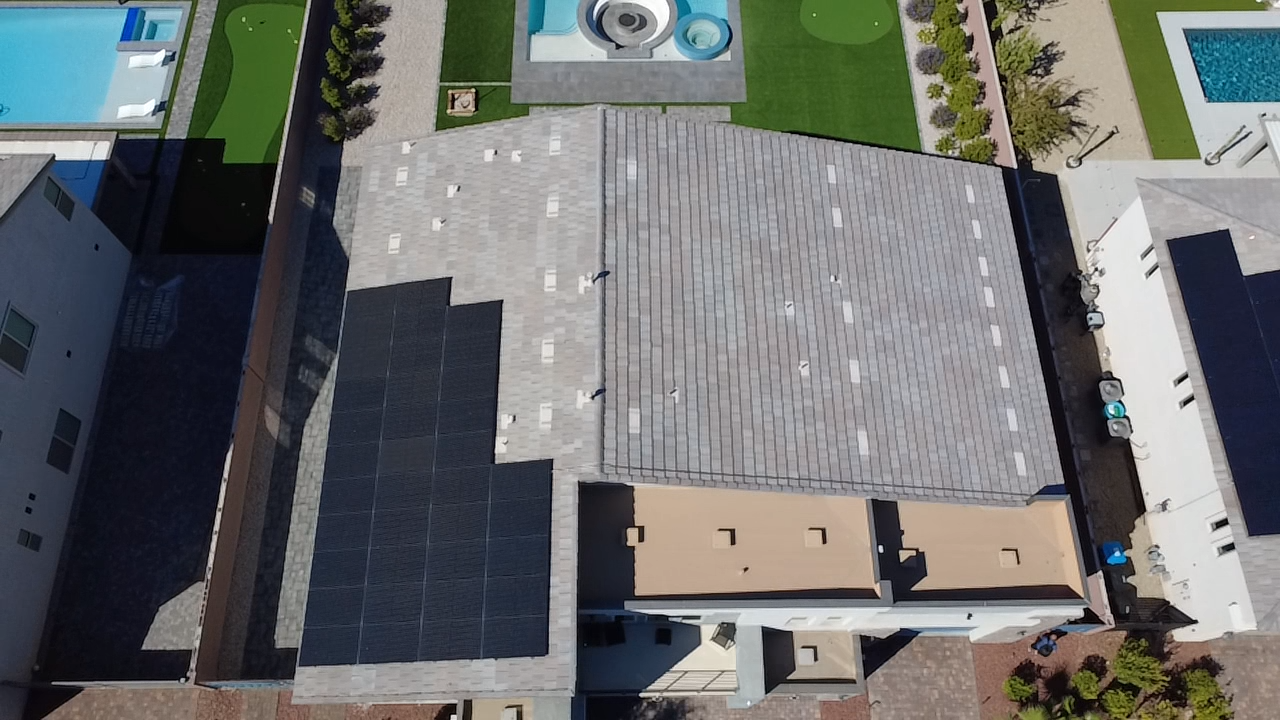
- Complete array overviewEvery panel on every roof plane. Use multiple wide views when needed.
- Array photos — panels & roofDifferent angles, closer views and visible conditions.
- Equipment label / model informationReadable manufacturer, model and serial details.
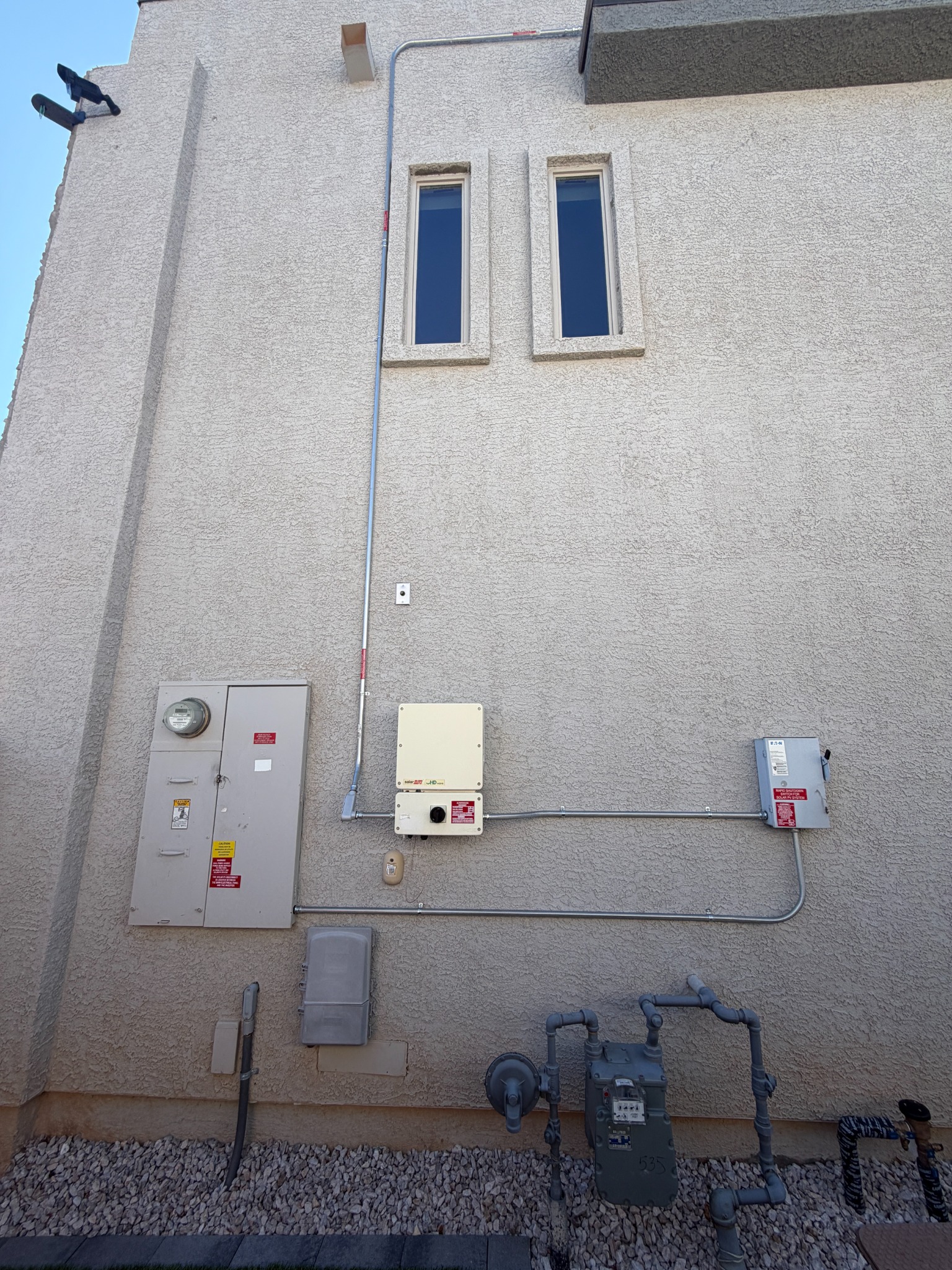
- Full equipment wallA wide view of the equipment and visible conduit.
- Inverter / combiner boxThe equipment and visible labeling.
- AC disconnect / solar shutoffThe disconnect and visible labels, where safely accessible.
- Solar breaker / electrical connectionBreaker size, connection area and visible PV labels.
- Battery and inverter screenRequired when the corresponding answer is Yes.
If the solar breaker cannot be accessed, use its Unable to Inspect option. Document other missing or inaccessible views in your notes and contact SCP for guidance. Additional photos are optional.
STEP 5
Submit the package and complete payment
An Assisted Report costs $125 per submission. Your free account is not charged for exploring the workspace or learning the process.
- Add useful field notes and check your information and uploads.
- Confirm client permission and accept the Inspector Agreement.
- Select Submit to SCP. This locks the field package.
- For external inspectors, select Pay now — $125 and pay securely through QuickBooks.
- Use Check payment status if needed. Wait for confirmation that the report has been sent to SCP.
SCP begins processing after the invoice payment is confirmed. Your payment covers this submission; do not create another report to retry payment. In-house and fee-exempt arrangements remain unchanged.
If your payment link is still being prepared, check again shortly or contact info@solarcertifiedpro.com.
STEP 6
Download and deliver the finished report
SCP reviews your material, prepares the report and may ask for missing information. You receive an email when the report is completed.
- Open My Workspace → Past Inspections & Drafts.
- Find the completed report and download its PDF.
- Deliver it to your client alongside your inspection materials.
The report is returned to you for your delivery. Contact SCP if a correction is needed.
Need help with your first submission?
Call 702-748-7767 or email inspections@solarcertifiedpro.com. Include your account email and the property address or report ID so we can find the right record.
SCP provides inspections, report preparation, education and service coordination. SCP is not an installation contractor. Reports reflect the available information and inspection limitations and do not guarantee system performance.